Zed Lake...but faster!
The Zed Lake Saga Continues…
Previously, we worked on creating a Zed Lake on AWS using an EC2 instance, however it was a very manual, tedious process that is also error prone and not scalable by any means. Thankfully AWS provides, for better or worse, an IaC offering in the form of CloudFormation. While CloudFormation isn’t as robust as other IaC offerings (as stated in the previous post this could very well be my own skill issues) like Terraform or Pulumi, it does work well when you’re all in on AWS, which is what we’ll pretend here. All in. No Questions asked.
Our Template
All the prep work from our previous endeavor still applies; the same SSH keys and cloud-config will be used. We’ll pass the cloud-config when we deploy the CloudFormation template along with some other parameters we’ll discuss in the coming sections. As we did for the cloud-config template, we’ll break down by their individual sections then provide the template in full after.
The Top and MetaData sections
AWSTemplateFormatVersion: '2010-09-09'
Description: 'CloudFormation stack for deploying a Zed Lake.'

Metadata:
  'AWS::CloudFormation::Interface':
    ParameterGroups:
      - Label:
          default: 'Networking Configuration'
        Parameters:
          - VpcCidr
          - SubnetCidr
      - Label:
          default: 'EC2 Configuration'
        Parameters:
          - InstanceType
          - AmiId
      - Label:
          default: 'User Data'
        Parameters:
          - CloudConfig
      - Label:
          default: 'Unique Suffix'
        Parameters:
          - UniqueSuffix
From the top, we have the AWSTemplateFormatVersion to tell CloudFormation the format of the template and how to process the rest of the template options. The description field is self explanatory.
The MetaData section here specifically lists parameters that are available when deploying the template via the AWS Console. The AWS CLI ignores this section when deploying the template.
The Parameters section
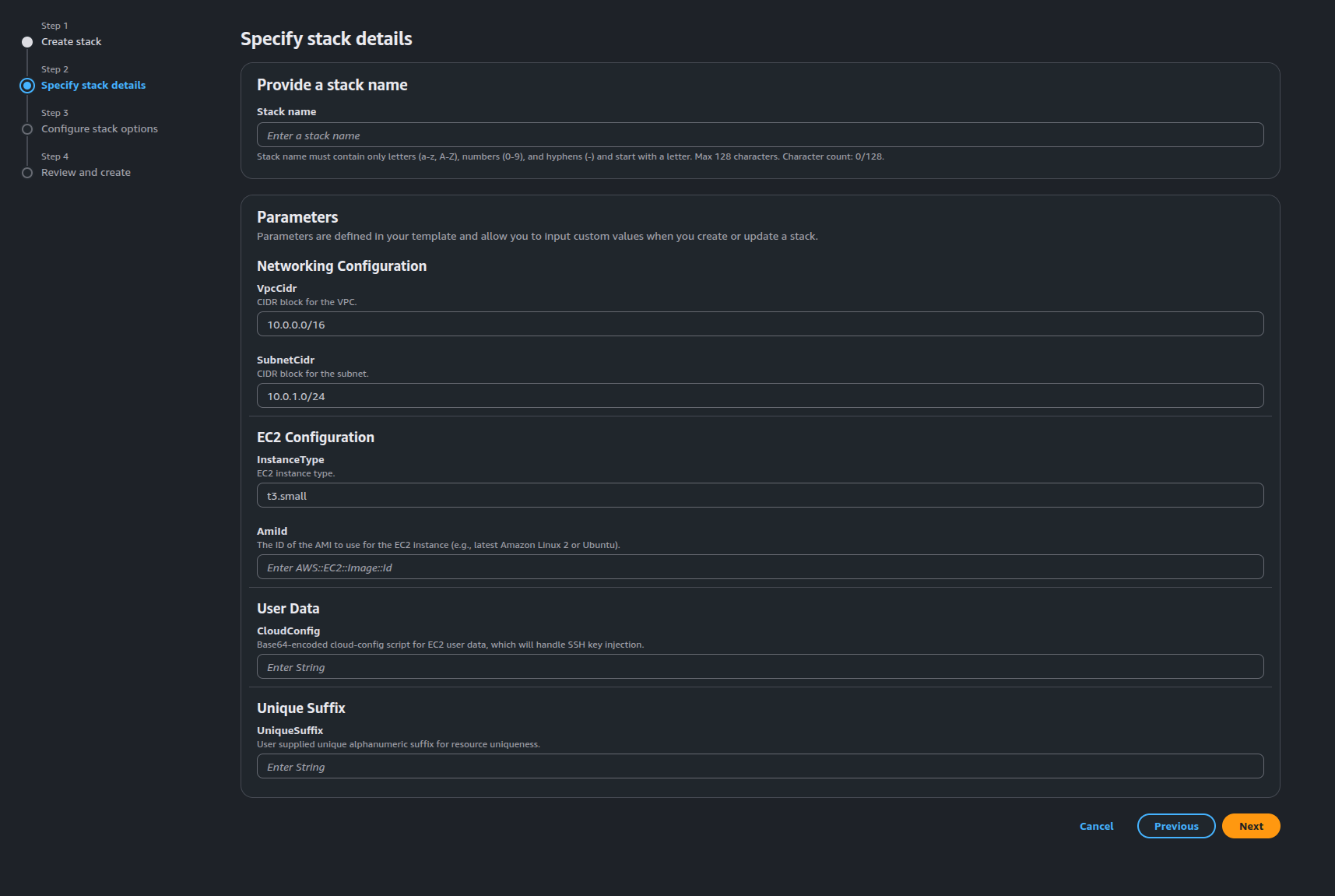
Parameters:
  VpcCidr:
    Type: String
    Default: 10.0.0.0/16
    Description: CIDR block for the VPC.
  SubnetCidr:
    Type: String
    Default: 10.0.1.0/24
    Description: CIDR block for the subnet.
  InstanceType:
    Type: String
    Default: t3.small
    Description: EC2 instance type.
  AmiId:
    Type: AWS::EC2::Image::Id
    Description: The ID of the AMI to use for the EC2 instance (e.g., latest Amazon Linux 2 or Ubuntu).
  CloudConfig:
    Type: String
    Description: Base64-encoded cloud-config script for EC2 user data, which will handle SSH key injection.
  UniqueSuffix:
    Type: String
    Description: User supplied unique alphanumeric suffix for resource uniqueness.
This section provides the parameters that need to be provided when using the AWS CLI. The default keys can be used to provide default values when deploying the template. Notice the Type key here, as we have both AWS resources and well as String as data types. The docs has more information detailing these and other parameters. The parameters without Default keys defined must have their values passed to them when the template is deployed. It should also go without saying that you can override the default values provided with your own values when deployed. If it doesn’t make sense now, it’ll make more sense when we get to the next part of the template body (I hope). Speaking of which…
The Resources section
This is the main body referenced earlier. As the name suggests, it’s the section where the resources necessary for the Zed Lake. We’ll be referencing most of those parameters mentioned above.
Resources:
# Networking
  VPC:
    Type: AWS::EC2::VPC
    Properties:
      CidrBlock: !Ref VpcCidr
      EnableDnsSupport: 'true'
      EnableDnsHostnames: 'true'
      Tags:
        - Key: use_case
          Value: zed_lake

  InternetGateway:
    Type: AWS::EC2::InternetGateway
    Properties:
      Tags:
        - Key: use_case
          Value: zed_lake

  AttachGateway:
    Type: AWS::EC2::VPCGatewayAttachment
    Properties:
      VpcId: !Ref VPC
      InternetGatewayId: !Ref InternetGateway

  PublicSubnet:
    Type: AWS::EC2::Subnet
    Properties:
      VpcId: !Ref VPC
      CidrBlock: !Ref SubnetCidr
      MapPublicIpOnLaunch: 'true'
      AvailabilityZone: !Select [ 0, !GetAZs ]
      Tags:
        - Key: use_case
          Value: zed_lake

  RouteTable:
    Type: AWS::EC2::RouteTable
    Properties:
      VpcId: !Ref VPC
      Tags:
        - Key: use_case
          Value: zed_lake

  RouteToInternet:
    Type: AWS::EC2::Route
    DependsOn: AttachGateway
    Properties:
      RouteTableId: !Ref RouteTable
      DestinationCidrBlock: 0.0.0.0/0
      GatewayId: !Ref InternetGateway

  SubnetRouteTableAssociation:
    Type: AWS::EC2::SubnetRouteTableAssociation
    Properties:
      SubnetId: !Ref PublicSubnet
      RouteTableId: !Ref RouteTable

  EC2SecurityGroup:
    Type: AWS::EC2::SecurityGroup
    Properties:
      VpcId: !Ref VPC
      GroupDescription: Enable SSH (22) and Zed Lake (9867) access from my IP.
      SecurityGroupIngress:
        - IpProtocol: tcp
          FromPort: 22
          ToPort: 22
          CidrIp: x.x.x.x/32
          Description: SSH from my IP

        - IpProtocol: tcp
          FromPort: 9867
          ToPort: 9867
          CidrIp: x.x.x.x/32
          Description: Zed Lake access from my IP
      Tags:
        - Key: use_case
          Value: zed_lake

# S3 Bucket Creation
  ZedLakeBucket:
    Type: AWS::S3::Bucket
    Properties:
      BucketName: !Sub 'zed-lake-${UniqueSuffix}'
      VersioningConfiguration:
        Status: Enabled
      Tags:
        - Key: use_case
          Value: zed_lake

# Identity creation
  ZedLakeInstanceProfile:
    Type: AWS::IAM::InstanceProfile
    Properties:
      Roles:
        - !Ref ZedLakeEC2Role

  ZedLakeEC2Role:
    Type: AWS::IAM::Role
    Properties:
      AssumeRolePolicyDocument:
        Version: '2012-10-17'
        Statement:
          - Effect: Allow
            Principal:
              Service:
                - ec2.amazonaws.com
            Action:
              - sts:AssumeRole
      Path: /
      Policies:
        - PolicyName: !Sub 'zed-lake-access-${UniqueSuffix}'
          PolicyDocument:
            Version: '2012-10-17'
            Statement:
              - Effect: Allow
                Action:
                  - s3:GetObject
                  - s3:ListBucket
                  - s3:GetBucketLocation
                Resource:
                  - !GetAtt ZedLakeBucket.Arn
                  - !Sub '${ZedLakeBucket.Arn}/*'
              - Effect: Allow
                Action:
                  - s3:ListAllMyBuckets
                Resource: '*'

  ZedLakeUploader:
    Type: AWS::IAM::User
    Properties:
      UserName: !Sub 'zed-lake-uploader-${UniqueSuffix}'
      Tags:
        - Key: use_case
          Value: zed_lake

  ZedLakeUploaderPolicy:
    Type: AWS::IAM::Policy
    Properties:
      PolicyName: !Sub 'zed-lake-uploader-${UniqueSuffix}'
      PolicyDocument:
        Version: '2012-10-17'
        Statement:
          - Effect: Allow
            Action:
              - s3:PutObject
              - s3:GetObject
              - s3:ListBucket
              - s3:DeleteObject
            Resource:
              - !GetAtt ZedLakeBucket.Arn
              - !Sub '${ZedLakeBucket.Arn}/*'
      Users:
        - !Ref ZedLakeUploader

  ZedLakeUploaderAccessKey:
    Type: AWS::IAM::AccessKey
    Properties:
      UserName: !Ref ZedLakeUploader
      Status: Active

  ZedLakeUploaderCreds:
    Type: AWS::SecretsManager::Secret
    Properties:
      Name: !Sub '/zed-lake/zed-lake-uploader-${UniqueSuffix}'
      Description: Credentials for the S3 Uploader IAM User.
      SecretString: !Sub |
        {
          "ACCESS_KEY": "${ZedLakeUploaderAccessKey}",
          "SECRET_KEY": "${ZedLakeUploaderAccessKey.SecretAccessKey}"
        }

# EC2 Creation
  EC2Instance:
    Type: AWS::EC2::Instance
    DependsOn:
      - AttachGateway
    Properties:
      ImageId: !Ref AmiId
      InstanceType: !Ref InstanceType
      SubnetId: !Ref PublicSubnet
      SecurityGroupIds:
        - !Ref EC2SecurityGroup
      IamInstanceProfile: !Ref ZedLakeInstanceProfile
      UserData: !Ref CloudConfig
      Tags:
        - Key: use_case
          Value: zed_lake
Ok…from the top:
- Create networking resources
- The VPC
- Enable DNS support so the package manager can actually update and install packages. I spent an undisclosed amount of time troubleshooting this originally only to find out it was DNS…as it always is…
- Create the Internet Gateway (IGW)
- Attaching the IGW to the VPC
- Create a subnet.
- The !Select [ 0, !GetAZs ] uses the first availability zone in the list provided by the !GetAZs function
- Create a route table for the VPC
- Attach said route table to the IGW with a destination CIDR of 0.0.0.0/0, thus creating a public gateway
- Associate said route table to the subnet providing public access to the subnet
- As state in the earlier post, the IP or CIDR you want to have access can also be provided here
- Create the security group with the necessary ingress rules for SSH and Zui
- Make sure to add your IP(s). If you have multiple IPs you’d like to access the lake from, just copy the sections and change the IPs accordingly
- Create an S3 bucket for data upload
- The use case around this is providing a means of an external entity, say a customer with a large data set that may not be supported by their current tooling
- Create an EC2 Instance Profile to access an S3 bucket and role policy for said instance profile
- Create an IAM User (gasp!) to upload data to the same S3 bucket and policy to allow said actions
- Create access keys for the IAM User
- Store the created keys in Secrets Manager for secure retrieval
- Create the EC2 instance using our cloud-config and apply the subnet, security group, and instance profile
Notice the some of the values have !Ref or !Sub. These are intrinsic functions within CloudFormation. These functions are particularly helpful, as they reference other resources within the template. Since we don’t know what the IDs of these resources will be, these intrinsic functions will call those values within the template once they’re created.
The Outputs section
Outputs:
  VPCId:
    Description: The ID of the newly created VPC
    Value: !Ref VPC
  PublicSubnetId:
    Description: The ID of the public subnet
    Value: !Ref PublicSubnet
  EC2PublicIP:
    Description: Public IP address of the EC2 instance
    Value: !GetAtt EC2Instance.PublicIp
  ZedLakeBucket:
    Description: S3 bucket for data upload
    Value: !Ref ZedLakeBucket
  ZedLakeUploader:
    Description: Zed Lake IAM user to upload to the Zed Lake bucket
    Value: !Ref ZedLakeUploader
  ZedLakeUploaderCreds:
    Description: Secret ARN for ZedLakeUpload identity.
    Value: !Ref ZedLakeUploaderCreds
The end of our template. This will output selected values that we might need. Here we’re outputting:
- The VPC ID
- The subnet ID
- The Public IP of the EC2 instance
- The S3 bucket name
- The IAM User
- The ARN of the secret that holds the IAM User’s access key and secret key within Secrets Manager
You can retrieve these on from the CloudFormation console or by the AWS CLI (more there in a bit).
So let’s look at this magnificent specimen of a template in its entirety:
AWSTemplateFormatVersion: '2010-09-09'
Description: 'CloudFormation stack for deploying a Zed Lake.'

Metadata:
  'AWS::CloudFormation::Interface':
    ParameterGroups:
      - Label:
          default: 'Networking Configuration'
        Parameters:
          - VpcCidr
          - SubnetCidr
      - Label:
          default: 'EC2 Configuration'
        Parameters:
          - InstanceType
          - AmiId
      - Label:
          default: 'User Data'
        Parameters:
          - CloudConfig
      - Label:
          default: 'Unique Suffix'
        Parameters:
          - UniqueSuffix


Parameters:
  VpcCidr:
    Type: String
    Default: 10.0.0.0/16
    Description: CIDR block for the VPC.
  SubnetCidr:
    Type: String
    Default: 10.0.1.0/24
    Description: CIDR block for the subnet.
  InstanceType:
    Type: String
    Default: t3.small
    Description: EC2 instance type.
  AmiId:
    Type: AWS::EC2::Image::Id
    Description: The ID of the AMI to use for the EC2 instance (e.g., latest Amazon Linux 2 or Ubuntu).
  CloudConfig:
    Type: String
    Description: Base64-encoded cloud-config script for EC2 user data, which will handle SSH key injection.
  UniqueSuffix:
    Type: String
    Description: User supplied unique alphanumeric suffix for resource uniqueness.


Resources:
# Networking
  VPC:
    Type: AWS::EC2::VPC
    Properties:
      CidrBlock: !Ref VpcCidr
      EnableDnsSupport: 'true'
      EnableDnsHostnames: 'true'
      Tags:
        - Key: use_case
          Value: zed_lake

  InternetGateway:
    Type: AWS::EC2::InternetGateway
    Properties:
      Tags:
        - Key: use_case
          Value: zed_lake

  AttachGateway:
    Type: AWS::EC2::VPCGatewayAttachment
    Properties:
      VpcId: !Ref VPC
      InternetGatewayId: !Ref InternetGateway

  PublicSubnet:
    Type: AWS::EC2::Subnet
    Properties:
      VpcId: !Ref VPC
      CidrBlock: !Ref SubnetCidr
      MapPublicIpOnLaunch: 'true'
      AvailabilityZone: !Select [ 0, !GetAZs ]
      Tags:
        - Key: use_case
          Value: zed_lake

  RouteTable:
    Type: AWS::EC2::RouteTable
    Properties:
      VpcId: !Ref VPC
      Tags:
        - Key: use_case
          Value: zed_lake

  RouteToInternet:
    Type: AWS::EC2::Route
    DependsOn: AttachGateway
    Properties:
      RouteTableId: !Ref RouteTable
      DestinationCidrBlock: 0.0.0.0/0
      GatewayId: !Ref InternetGateway

  SubnetRouteTableAssociation:
    Type: AWS::EC2::SubnetRouteTableAssociation
    Properties:
      SubnetId: !Ref PublicSubnet
      RouteTableId: !Ref RouteTable

  EC2SecurityGroup:
    Type: AWS::EC2::SecurityGroup
    Properties:
      VpcId: !Ref VPC
      GroupDescription: Enable SSH (22) and Zed Lake (9867) access from my IP.
      SecurityGroupIngress:
        - IpProtocol: tcp
          FromPort: 22
          ToPort: 22
          CidrIp: x.x.x.x/32
          Description: SSH from my IP

        - IpProtocol: tcp
          FromPort: 9867
          ToPort: 9867
          CidrIp: x.x.x.x/32
          Description: Zed Lake access from my IP
      Tags:
        - Key: use_case
          Value: zed_lake

# S3 Bucket Creation
  ZedLakeBucket:
    Type: AWS::S3::Bucket
    Properties:
      BucketName: !Sub 'zed-lake-${UniqueSuffix}'
      VersioningConfiguration:
        Status: Enabled
      Tags:
        - Key: use_case
          Value: zed_lake

# Identity creation
  ZedLakeInstanceProfile:
    Type: AWS::IAM::InstanceProfile
    Properties:
      Roles:
        - !Ref ZedLakeEC2Role

  ZedLakeEC2Role:
    Type: AWS::IAM::Role
    Properties:
      AssumeRolePolicyDocument:
        Version: '2012-10-17'
        Statement:
          - Effect: Allow
            Principal:
              Service:
                - ec2.amazonaws.com
            Action:
              - sts:AssumeRole
      Path: /
      Policies:
        - PolicyName: !Sub 'zed-lake-access-${UniqueSuffix}'
          PolicyDocument:
            Version: '2012-10-17'
            Statement:
              - Effect: Allow
                Action:
                  - s3:GetObject
                  - s3:ListBucket
                  - s3:GetBucketLocation
                Resource:
                  - !GetAtt ZedLakeBucket.Arn
                  - !Sub '${ZedLakeBucket.Arn}/*'
              - Effect: Allow
                Action:
                  - s3:ListAllMyBuckets
                Resource: '*'

  ZedLakeUploader:
    Type: AWS::IAM::User
    Properties:
      UserName: !Sub 'zed-lake-uploader-${UniqueSuffix}'
      Tags:
        - Key: use_case
          Value: zed_lake

  ZedLakeUploaderPolicy:
    Type: AWS::IAM::Policy
    Properties:
      PolicyName: !Sub 'zed-lake-uploader-${UniqueSuffix}'
      PolicyDocument:
        Version: '2012-10-17'
        Statement:
          - Effect: Allow
            Action:
              - s3:PutObject
              - s3:GetObject
              - s3:ListBucket
              - s3:DeleteObject
            Resource:
              - !GetAtt ZedLakeBucket.Arn
              - !Sub '${ZedLakeBucket.Arn}/*'
      Users:
        - !Ref ZedLakeUploader

  ZedLakeUploaderAccessKey:
    Type: AWS::IAM::AccessKey
    Properties:
      UserName: !Ref ZedLakeUploader
      Status: Active

  ZedLakeUploaderCreds:
    Type: AWS::SecretsManager::Secret
    Properties:
      Name: !Sub '/zed-lake/zed-lake-uploader-${UniqueSuffix}'
      Description: Credentials for the S3 Uploader IAM User.
      SecretString: !Sub |
        {
          "ACCESS_KEY": "${ZedLakeUploaderAccessKey}",
          "SECRET_KEY": "${ZedLakeUploaderAccessKey.SecretAccessKey}"
        }

# EC2 Creation
  EC2Instance:
    Type: AWS::EC2::Instance
    DependsOn:
      - AttachGateway
    Properties:
      ImageId: !Ref AmiId
      InstanceType: !Ref InstanceType
      SubnetId: !Ref PublicSubnet
      SecurityGroupIds:
        - !Ref EC2SecurityGroup
      IamInstanceProfile: !Ref ZedLakeInstanceProfile
      UserData: !Ref CloudConfig
      Tags:
        - Key: use_case
          Value: zed_lake

Outputs:
  VPCId:
    Description: The ID of the newly created VPC
    Value: !Ref VPC
  PublicSubnetId:
    Description: The ID of the public subnet
    Value: !Ref PublicSubnet
  EC2PublicIP:
    Description: Public IP address of the EC2 instance
    Value: !GetAtt EC2Instance.PublicIp
  ZedLakeBucket:
    Description: S3 bucket for data upload
    Value: !Ref ZedLakeBucket
  ZedLakeUploader:
    Description: Zed Lake IAM user to upload to the Zed Lake bucket
    Value: !Ref ZedLakeUploader
  ZedLakeUploaderCreds:
    Description: Secret ARN for ZedLakeUpload identity.
    Value: !Ref ZedLakeUploaderCreds
Not too bad. My bash scripts are much worse. Now let’s deploy this template!
Deploying the template
So now we have our template, we a couple ways to deploy it.
Using the Console
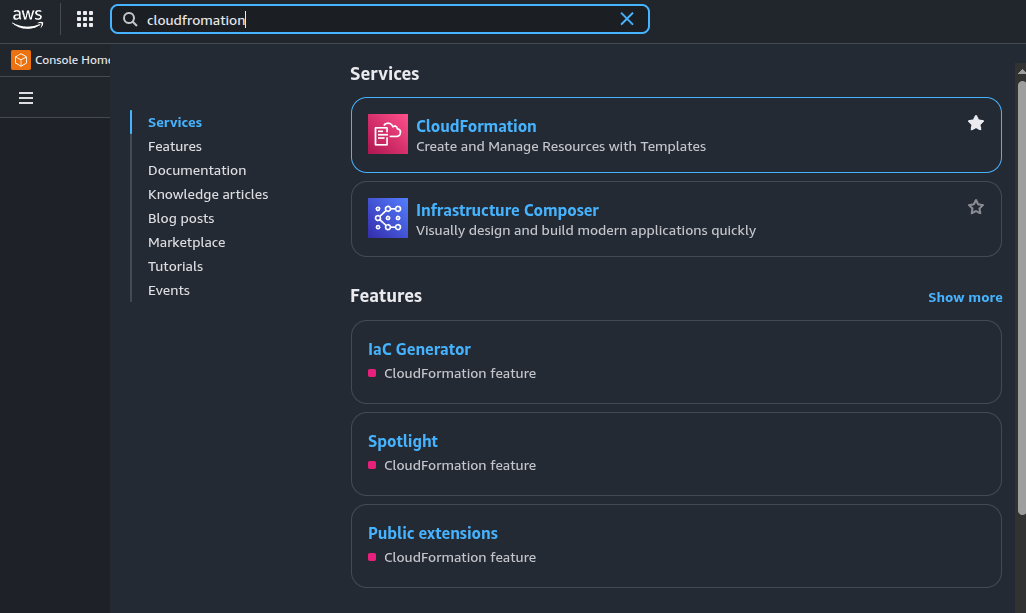
Using the search, type CloudFormation.
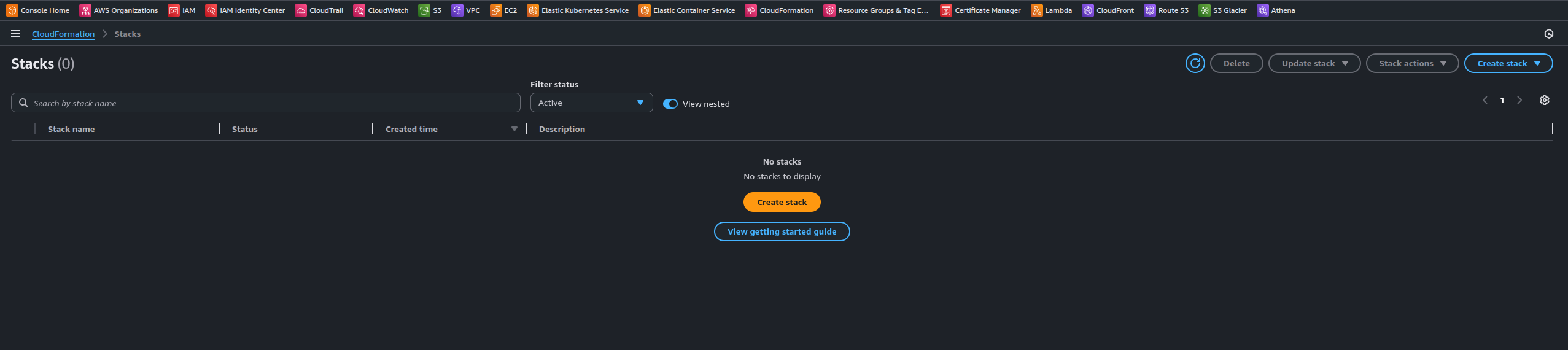
On the CloudFormation page click Create Stack
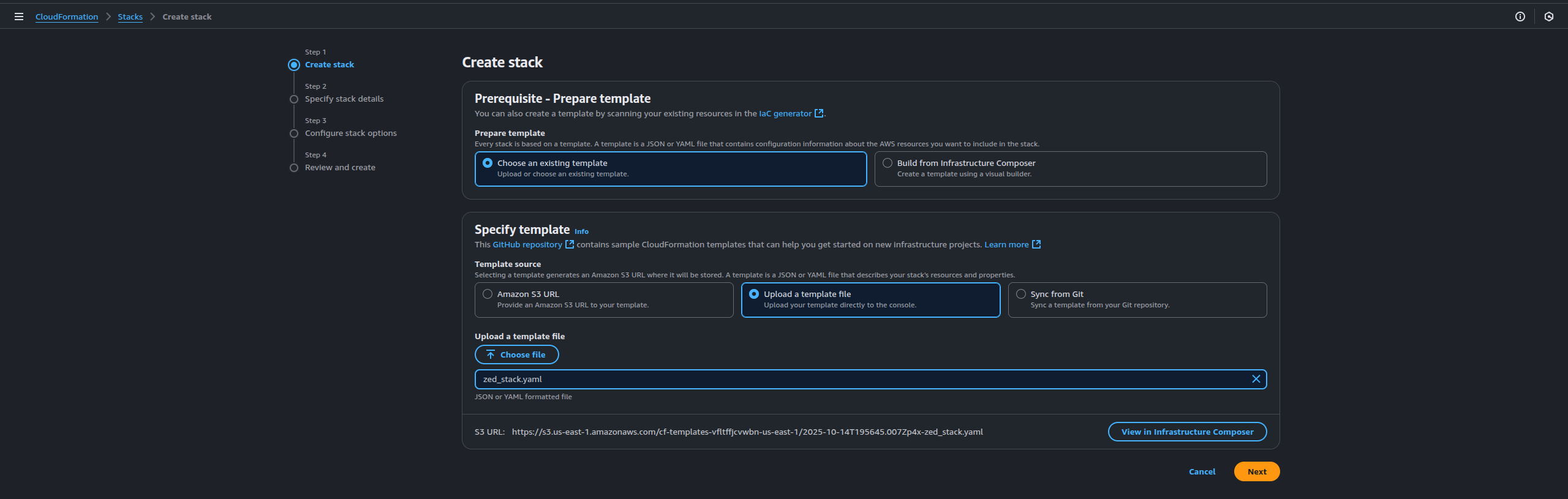
We can choose an existing template or use the Infrastructure Composer. We have a template so we choose our existing one and upload. It’ll create an S3 bucket for your template. Click Next
Now here’s our parameters we saw at the top of the template. Here we’ll need to specify our AMI, cloud-config (AWS will encode it using base64), Stack Name, and UniqueSuffix and name of the stack. You’ll want to make the Stack Name unique as well in case someone else needs to use this same template. Click Next
NOTE
- The cloud-config will need to added as a value of the UserData key in the CloudFormation template using the Fn::Base64 function to encode it. I found this out when testing the deployment (that nasty skill issue paying me another visit). Your EC2 section would look something like:
        MyEC2Instance:
        Type: AWS::EC2::Instance
        Properties:
          ImageId: ami-0abcdef1234567890
          InstanceType: t2.small
          UserData:
            Fn::Base64: |
              #cloud-config
              ...
This page you’ll want to leave everything as their defaults but at the bottom of the page there a capabilities section where the box needs checked as we’re creating IAM resources. Check the box and click Next
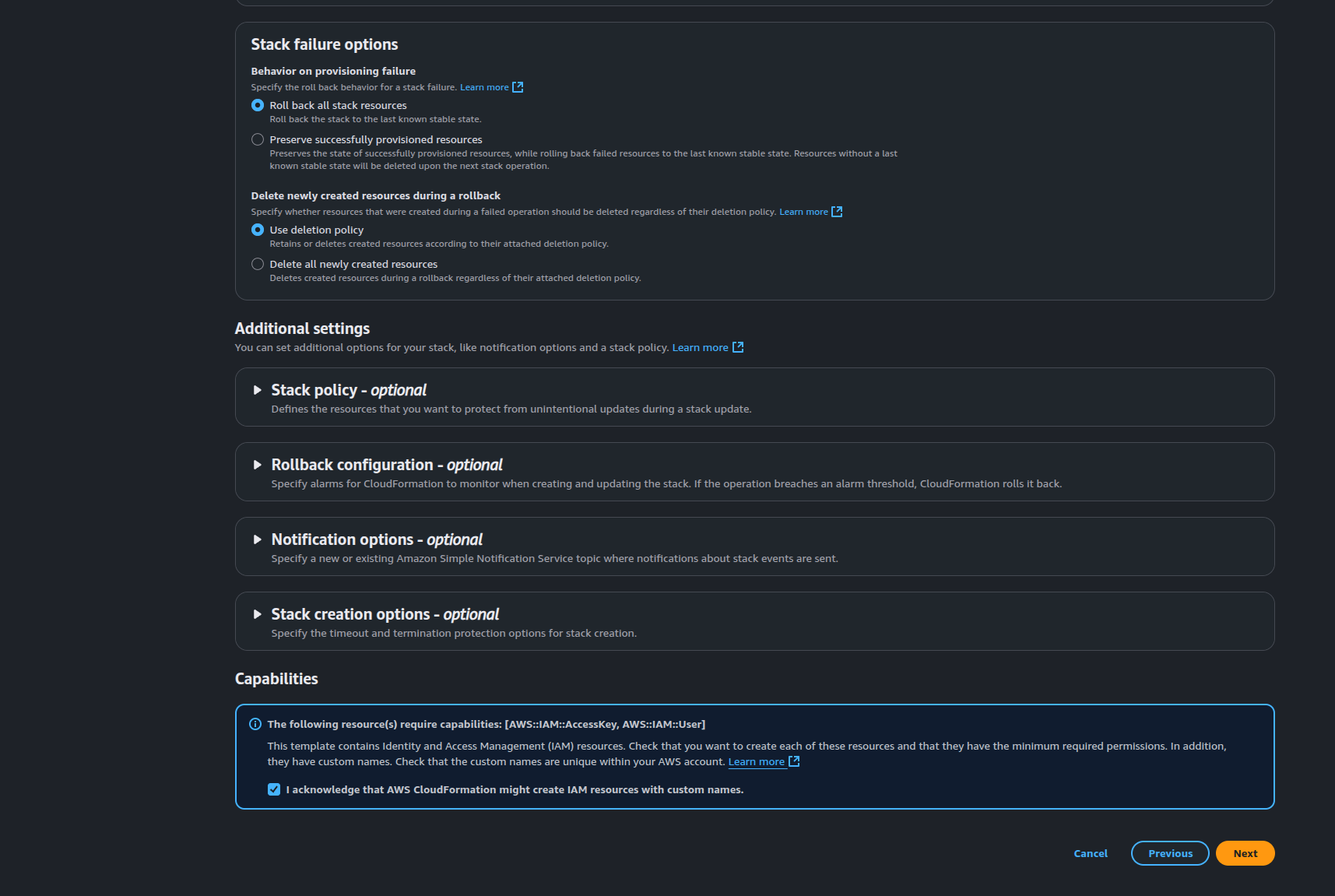
Review and deploy.
As you can see, ClickOps is clunky…but it worked. The CLI is a more elegant way to handle this deployment. Using the AWS CLI we can make this a much less clunky and way more repeatable without adding unnecessary length to the template.
aws cloudformation create-stack \
    --stack-name zed-lake-$(uuidgen) \
    --template-body file://zed_stack.yaml \
    --parameters \
        ParameterKey=AmiId,ParameterValue=ami-052064a798f08f0d3 \
        ParameterKey=CloudConfig,ParameterValue="$(cat /path/to/cloud-config.yaml | base64 -w 0)" \
        ParameterKey=UniqueSuffix,ParameterValue=$(tr -dc 'a-z0-9' < /dev/urandom | head -c 10) \
    --capabilities CAPABILITY_NAMED_IAM
We’re using some default binaries in Linux to generate our unique suffixes for our stack name and other resources. The uuidgen is installed by default in most (I said most, I’m on Fedora and it’s here) and the commands in the command string tr -dc ‘a-z0-9’ < /dev/urandom | head -c 10 are accessible on all Linux OSs. If you’re using Windows you’ll need to find the equivalent commands.
{
    "StackId": "arn:aws:cloudformation:us-east-1:<your-aws-account-id:stack/zed-lake-<random-uuidgen-output>/<aws-unique-uuid>"
}
You’ll see your stack with its stack name on the CloudFormation page. If you click the stack, you’ll see tabs to the right of the stack, one of which is those outputs we defined in the stack template. Or you can use the AWS CLI to grab your outputs
aws cloudformation describe-stacks \
    --stack-name my-zed-lake-stack-<unique-id> \
    --query 'Stacks[0].Outputs'
Hypothetically, with this workflow the IAM user credentials can be securely retrieved and provided to a client or business unit to upload the data to the bucket and you can use the command line on the EC2 instance to pull the data from the S3 bucket URL and create the pool using the zed command with no need to drag and drop the data from the client running Zui to the Zed lake. In theory, the EC2 instance profile should have the proper permissions to access the bucket. However you’d be using the zed load command to retrieve the data and create the lake so there is the possibility that the bucket policy might need modified but it should work.
When we’re done. Just click the radio button next to the stack name on the Stack page and select Delete on the top right to start the delete process and it’ll take care of deleting the resources (any resources that it can’t delete will prompt you and might require manual deletion or a force delete from the stack page). There’s a bunch you can do with CloudFormation templates, you can even define already existent cloud resources into a template and move all your infrastructure into IaC and move to managing your entire infrastructure using GitOps. There’s plenty of opportunity to adopt something similar to what we have here as part of your automated incident response workflow as well in the event you need to spin up something quickly and with minimal friction. That said, I’m somewhat interested in doing a bit more diving into CloudFormation and learning a bit more about it. But that’s a task for another day.
And with that…I’m out! You can check out the code from both posts so far in my Code Cave.